
Let Claude Do the Typing: Automating Portal Data Entry with Claude in Chrome
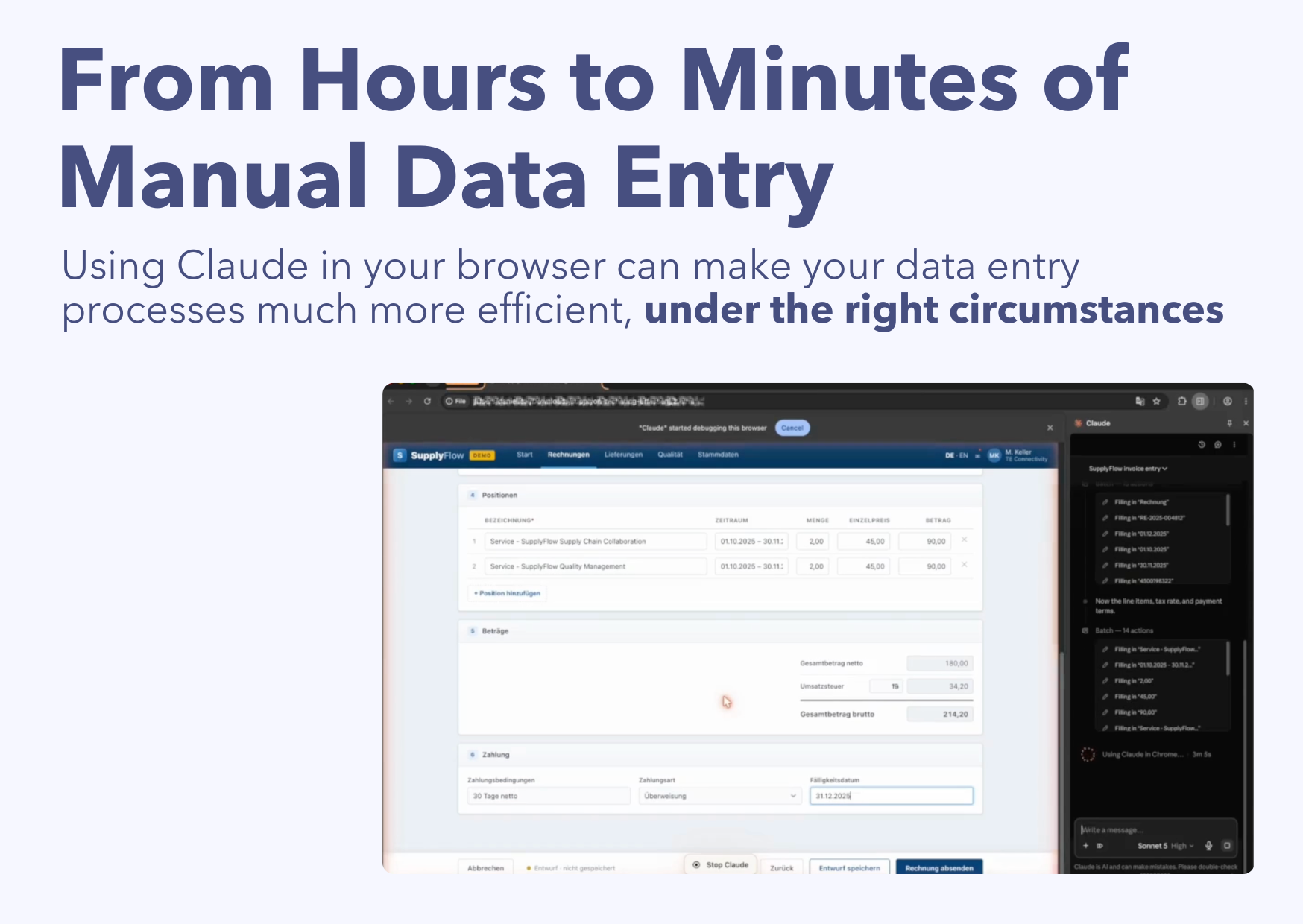
Every company has one: a web portal where someone, several times a week, retypes the same information out of a PDF or a spreadsheet. A supplier invoice into a customer portal. Shipment details into a logistics platform. Line items into a procurement system. It's slow, it's dull, and it's exactly the kind of work people make small mistakes on precisely because it's so repetitive.
Here's a demo of a lighter-weight way to handle it: use Claude in Chrome at the document, let it fill the portal form for you, and keep a human on the final click. No integration project, no RPA licence, no waiting on the portal vendor to build an API. If you already use Claude, you can try this today.
Before the walkthrough, though, let's discuss in which situation this approach works best and where it does not.
When this is the right tool
This works best when four things are true.
You already use Claude, or are ready to. This runs on the Claude for Chrome extension, available on paid Claude plans. If Claude is already part of your workflow, there's almost nothing to set up.
The task is "copy structured data from a document into a web form," repeatedly. The information already exists somewhere, a PDF, an email, an Excel row, and someone's job is to move it into a portal. That's the sweet spot. Claude reads the source and types it into the right fields.
Volume is low to medium, and a human stays in the loop. A handful to a few dozen documents a day, with a person available to glance at the result and approve it, is ideal. This is assisted data entry, not a lights-out batch job. If you're processing thousands of identical records unattended, a proper API integration or an RPA tool is the more robust answer.
The data isn't highly sensitive or regulated.
A simple, sensible security posture
Think of this as a good-hygiene scenario, not a maximum-security one. If you're handling ordinary business documents, invoices, shipment references, order data, a few settings get you to a reasonable posture:
- Turn off training on your data. On consumer plans (Free, Pro, Max), Anthropic's setting to use your conversations for model training has been on by default since late 2025. Switch "Help improve Claude" off in Privacy Settings. With it off, standard conversations fall under a 30-day retention window rather than the multi-year one that applies when it's on.
- Better yet, use a commercial plan. On Team, Enterprise, API, Bedrock, or Vertex, Anthropic does not train on your data by default. For business use, that's the cleaner starting point.
- For stricter needs, ask about Zero Data Retention (ZDR). ZDR is available to qualified Enterprise accounts on a per-organization basis. It's not part of the standard plan, you request it through your account team.
And the honest ceiling: even with training off, conversations that get flagged by safety systems can still be reviewed. So this is the right approach for everyday operational data, not for highly classified, regulated, or special-category data (think health records, government-classified material, or anything under a strict DPA). For those, you want enterprise controls, ZDR, a signed agreement, or a self-hosted setup.
If your use case clears those four bars, read on. The rest is genuinely easy.
The demo
To show the mechanics without touching a real customer system, I built a mock supplier portal ("SupplyFlow," clearly marked as a demo) and a matching fake invoice. The flow is a realistic three-step wizard;, pick the process, attach the document, fill the form. Here's the whole thing, start to finish.
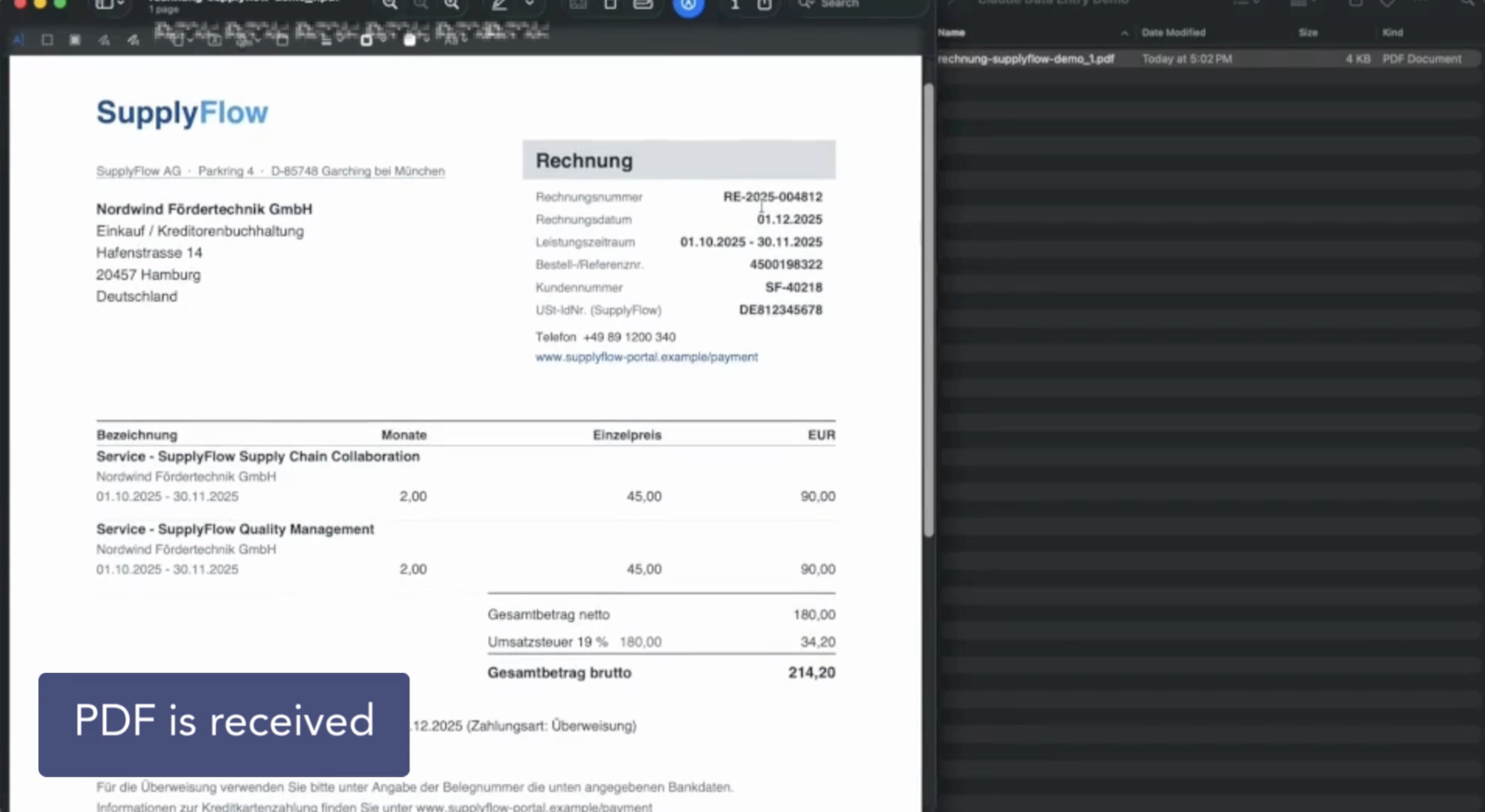
1. A document arrives
The starting point is an invoice PDF, the kind of document that would normally land in someone's inbox and trigger a round of manual retyping. Everything Claude fills in will come from this file.
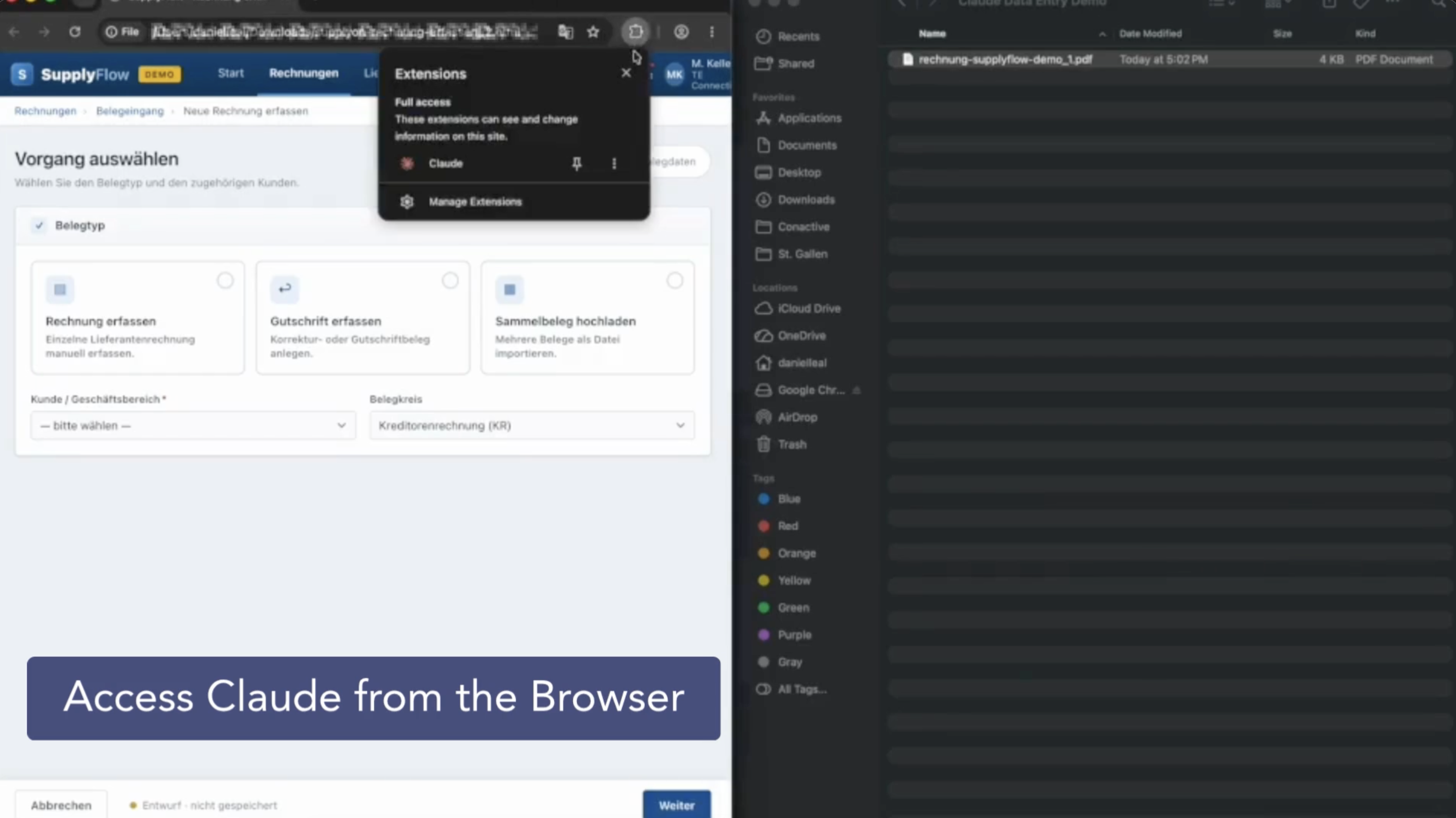
2. Open Claude in the browser
With the portal open in one Chrome tab, open the Claude side panel from the extension. This is the whole "setup": Claude now sees the page you're on and can act on it directly.
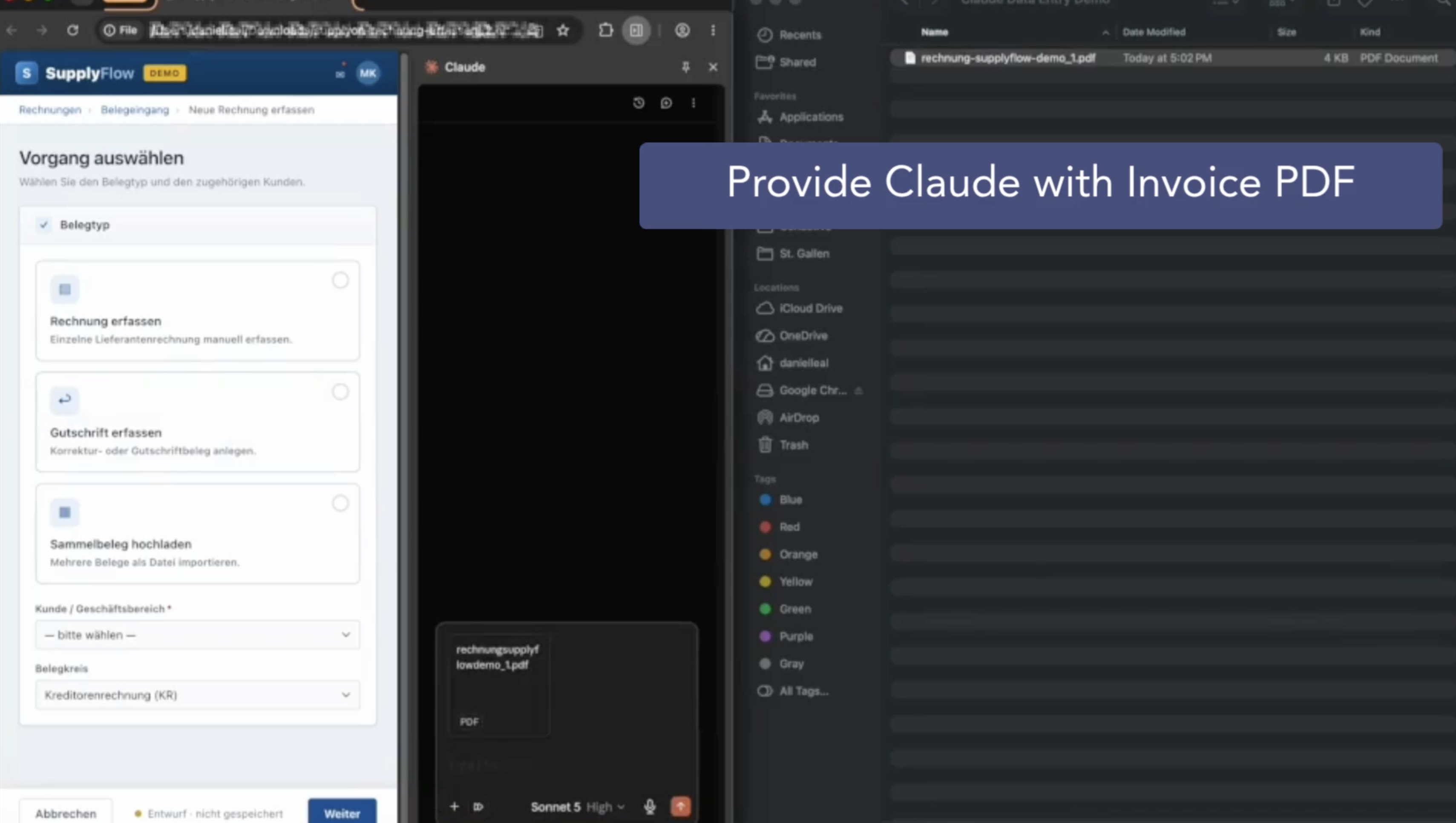
3. Give Claude the invoice
Claude in Chrome can read your browser tabs, but it can't see a document sitting in a separate PDF viewer. So hand it the invoice directly, attach the PDF in the side panel (you can also open the PDF as its own Chrome tab, or paste the key values in as a fallback. Attaching it is the most reliable option, because Claude reads the file natively.
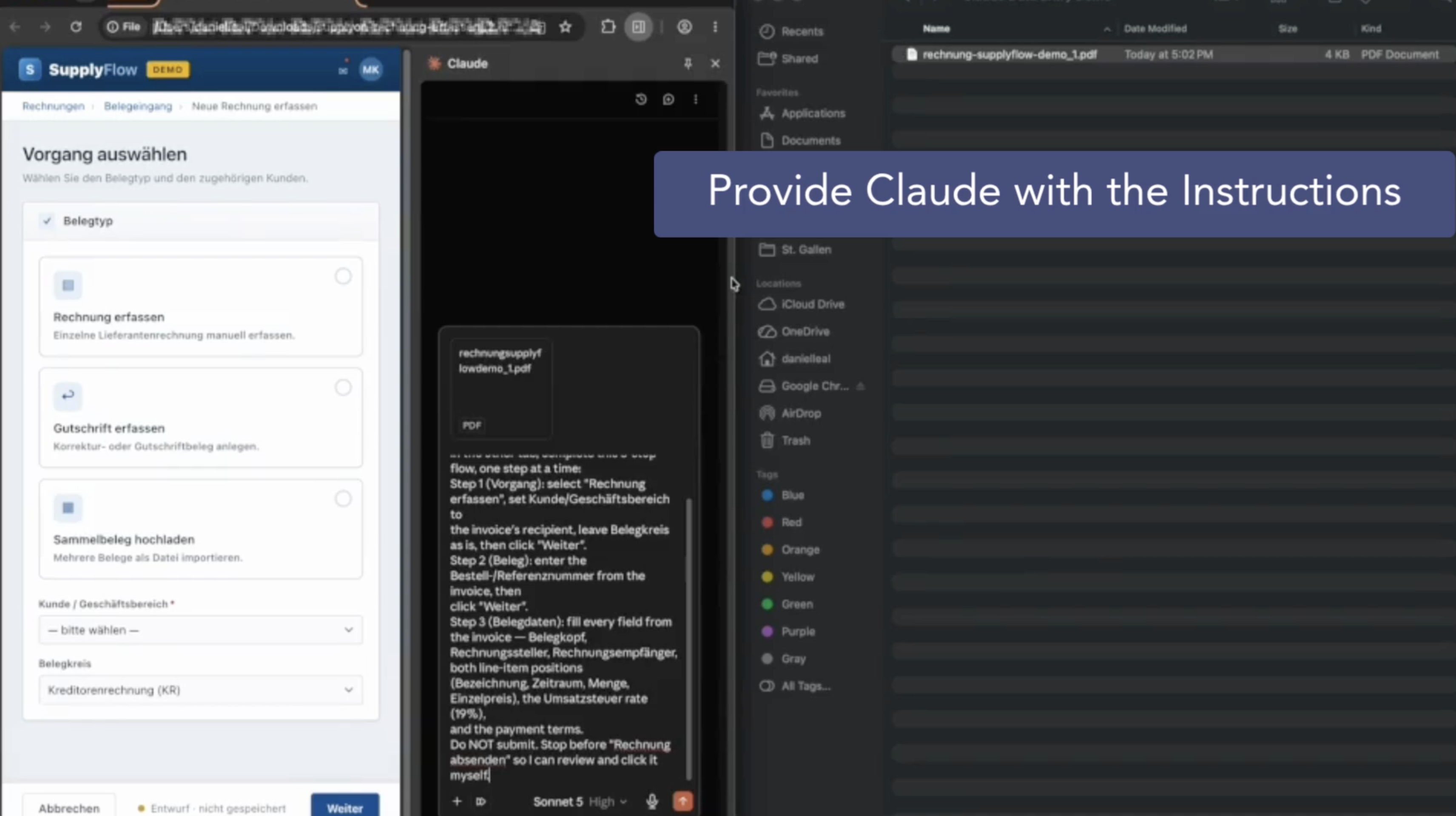
4. Give Claude the instructions
Now tell it what to do. The clearer the instruction, the cleaner the run. The prompt that drove this demo, spelled out step by step:
You're on the SupplyFlow supplier portal (the form tab). Using the invoice I've attached, complete this three-step flow, one step at a time:
Step 1 (Vorgang): select "Rechnung erfassen," set Kunde/Geschäftsbereich to the invoice's recipient, leave Belegkreis as is, then click "Weiter."
Step 2 (Beleg): enter the Bestell-/Referenznummer from the invoice, then click "Weiter."
Step 3 (Belegdaten): fill every field from the invoice — Belegkopf, Rechnungssteller, Rechnungsempfänger, both line-item positions (Bezeichnung, Zeitraum, Menge, Einzelpreis), the Umsatzsteuer rate (19%), and the payment terms.
Do not submit. Stop before "Rechnung absenden" so I can review and click it myself.
That last line is the important one. It keeps a person on the final, irreversible action, which is exactly the control you want when a machine is entering data on your behalf.
5. Claude works through the form
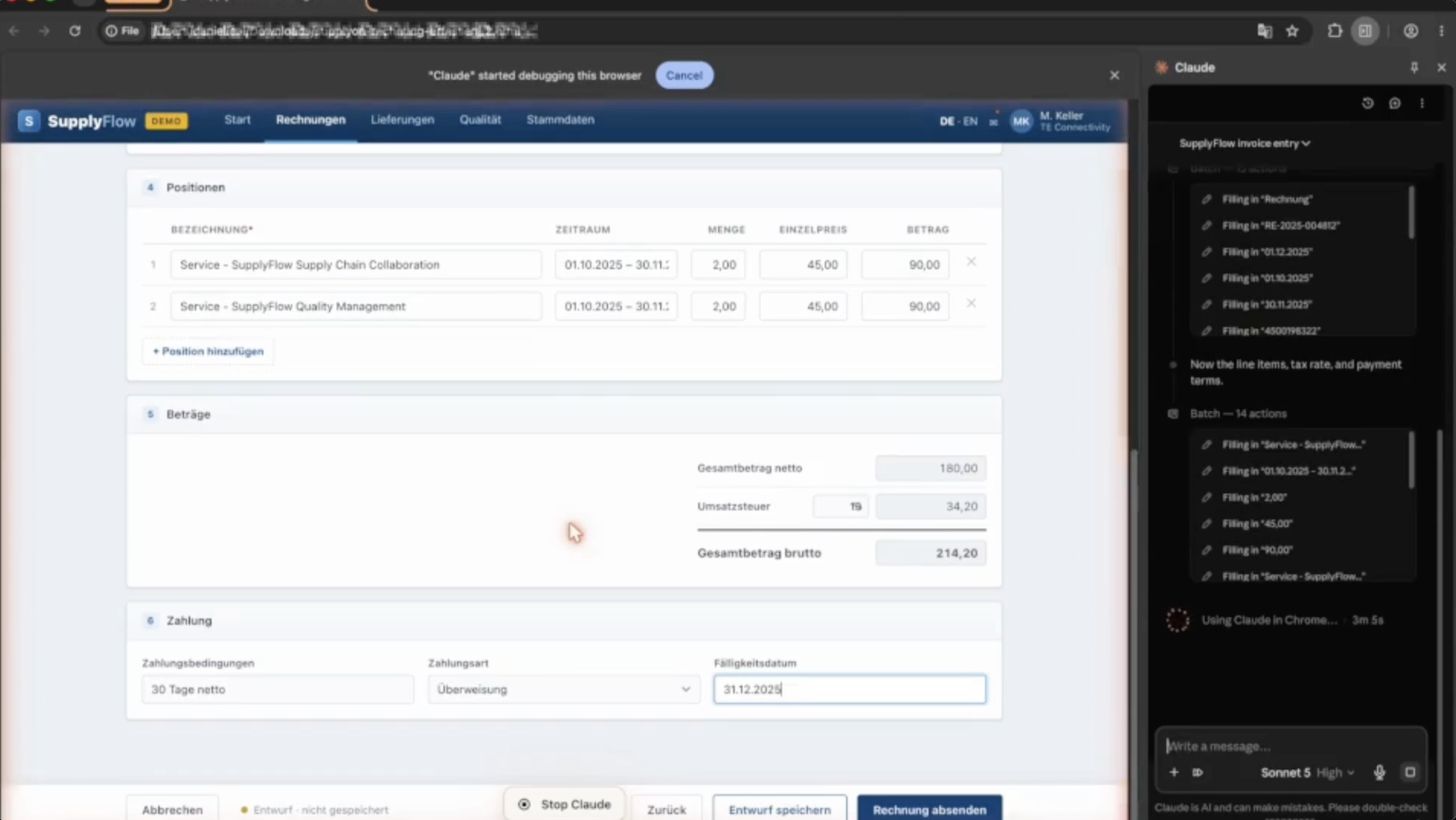
From here, Claude drives. It selects the process type and the customer, clicks through to the next step, enters the reference, and then works down the full form, header, supplier, recipient, both line items, tax rate, payment terms. On this form the totals recalculate live, so Netto, USt, and Brutto fall into place and match the invoice as the fields populate.
6. You verify, then submit
Claude stops where it was told to, right before the submit button, and hands control back. Now you do the one thing a human should always do: read what it entered. Check the amounts, the reference, the recipient. When you're satisfied, you click "Rechnung absenden."
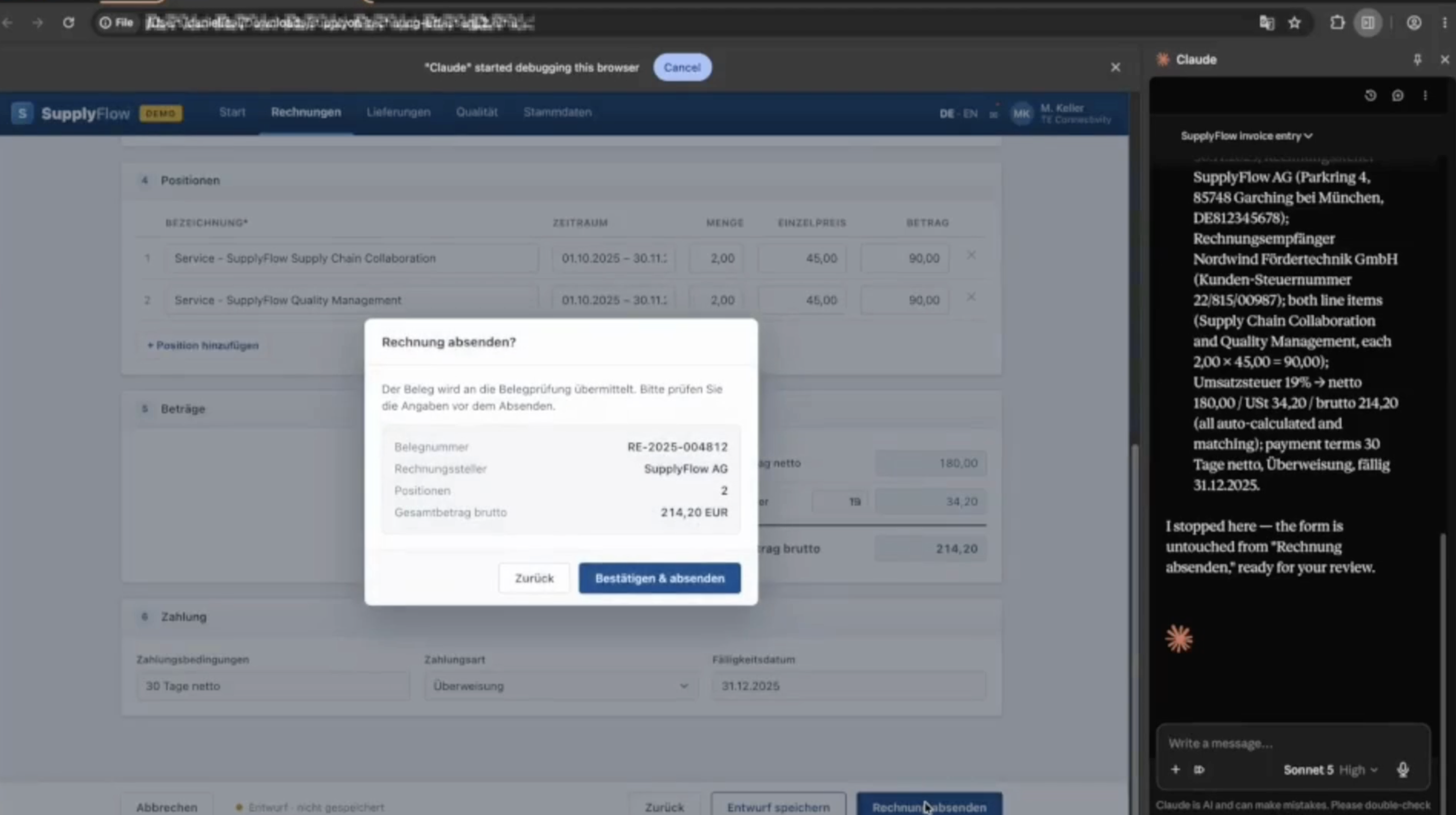
That's the entire loop: document in → Claude fills → human checks → human submits. A task that was several minutes of careful typing becomes about thirty seconds of review.
Why this is more than a party trick
Two things make this worth adopting rather than just demoing.
The human stays in control of what matters. Claude does the tedious part, reading and typing, but the person keeps the judgment call and the final click. You get the speed without handing over the decision.
It's repeatable. Once a run goes cleanly, you can save it as a reusable shortcut and trigger the same workflow with a single command next time. That's what turns a one-off demo into something that quietly saves time on every invoice, every shipment, every week.
Where it stops
To keep expectations honest: this shines on stable forms, moderate volume, and non-sensitive data with a reviewer in the loop. If the portal changes its layout, you re-record the workflow. If it throws a CAPTCHA or a login, that stays a human step by design. And if you're moving into high volume, unattended runs, or genuinely sensitive data, that's the signal to graduate to an API integration, an RPA platform, or an enterprise setup with the stricter controls described above.
Used within those lines, though, it's one of the fastest ways to take a painful manual process and make it almost disappear, using a tool you may already have open in another tab.
Continue the conversation with the author

Daniel Leal
Data & AI Infrastructure Consultant
Book a free 30-min call with Daniel and leave with clarity on your next step.
Pick your time in 60 seconds
